Date and time formulas
Excel IF with dates
Write IF formulas with dates safely in Excel, including TODAY, DATE, date thresholds, and common serial-number mistakes.
The specific problem
Date formulas break when the date is treated like text. Excel stores dates as serial numbers, so a reliable `IF` formula should compare real dates to real dates.
For a fixed deadline, use `DATE`:
=IF(A2<=DATE(2026,8,31),"On time","Late")For a rolling deadline, use `TODAY`:
=IF(A2<TODAY(),"Overdue","Open")Why DATE is safer than typed text
`"8/31/2026"` can be interpreted differently depending on locale settings. `DATE(2026,8,31)` is unambiguous: year, month, day.
Common mistakes
- Comparing a date to text that looks like a date.
- Forgetting that `TODAY()` changes every day.
- Using `<=` when the business rule requires strictly before the date.
- Returning inconsistent labels such as `late`, `Late`, and `LATE` in different rows.
Workdays and deadlines
When weekends should be excluded, use `WORKDAY` before the comparison:
=IF(TODAY()>WORKDAY(A2,5),"Escalate","OK")That formula flags a row only after five working days have passed.
Performance notes
`TODAY()` is volatile, so it recalculates frequently. That is normal in small sheets, but in large models it is cleaner to store a single report date in one cell and reference it everywhere.
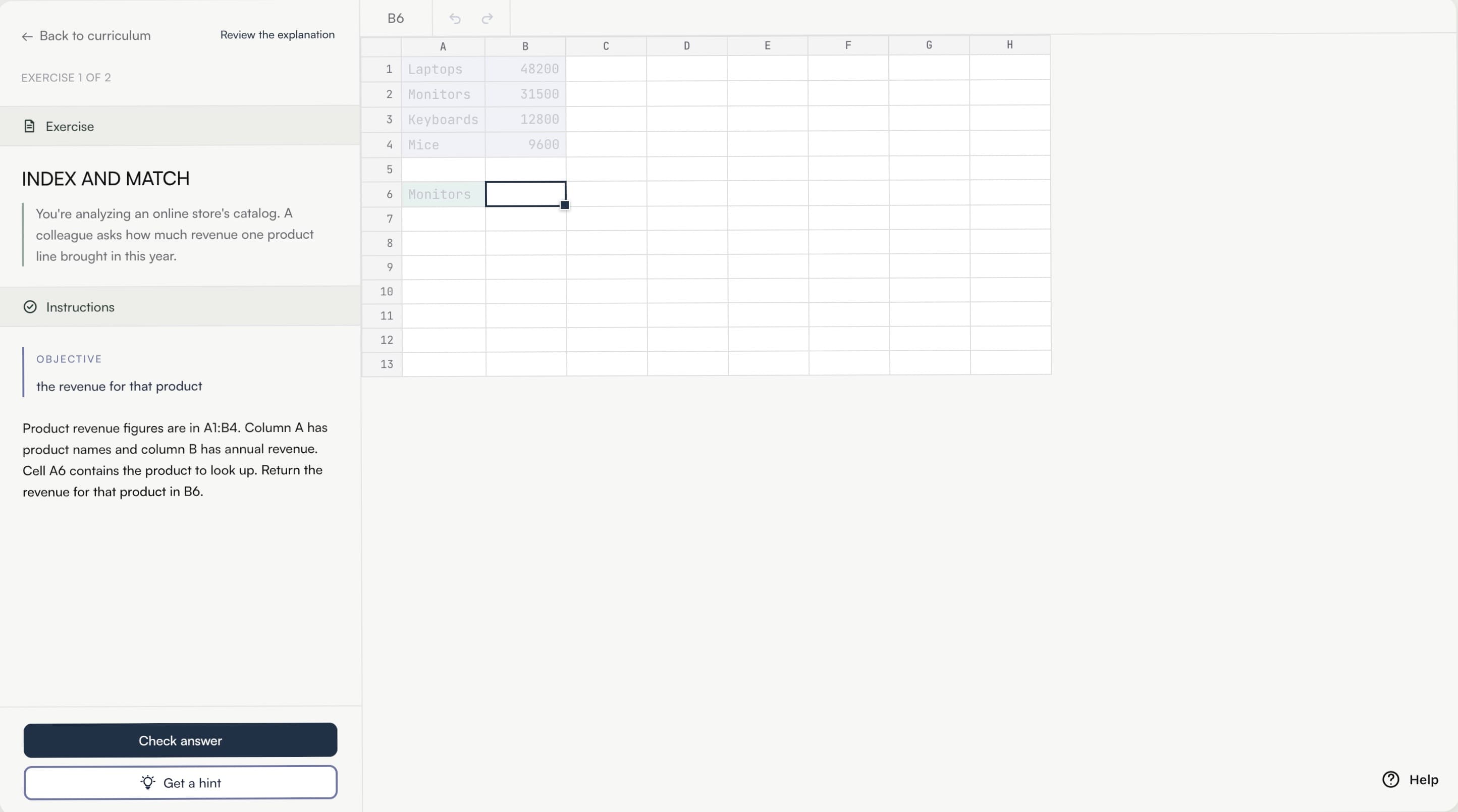
Practice this skill in Calcu
Date exercises in Calcu train the difference between calendar days, workdays, and text labels, which is where most real spreadsheet mistakes happen.
Related formulas: `IFS`, `WORKDAY`, `NETWORKDAYS`, `XLOOKUP` with effective dates.